
KPI Formula, Trend & Big Number Dashboard Documentation
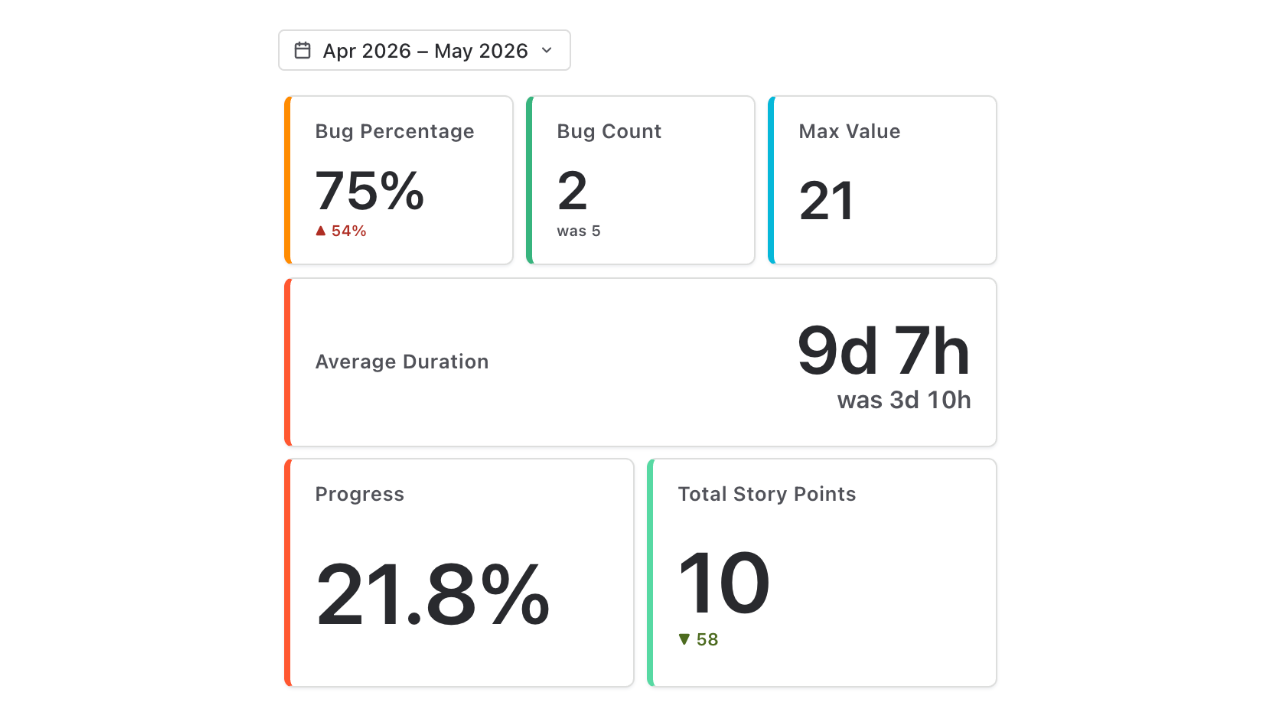
KPI Formula, Trend & Big Number Dashboard for Jira renders big-number KPI cards
on a Jira dashboard. Each card defines its own metrics — labelled A, B, C… —
where a metric is one JQL query plus one aggregation: count, sum, average, min or max of a
numeric field, or a derived per-issue value such as cycle time (date difference), age (days
since) or runway (days until). The card then shows one metric or a formula over
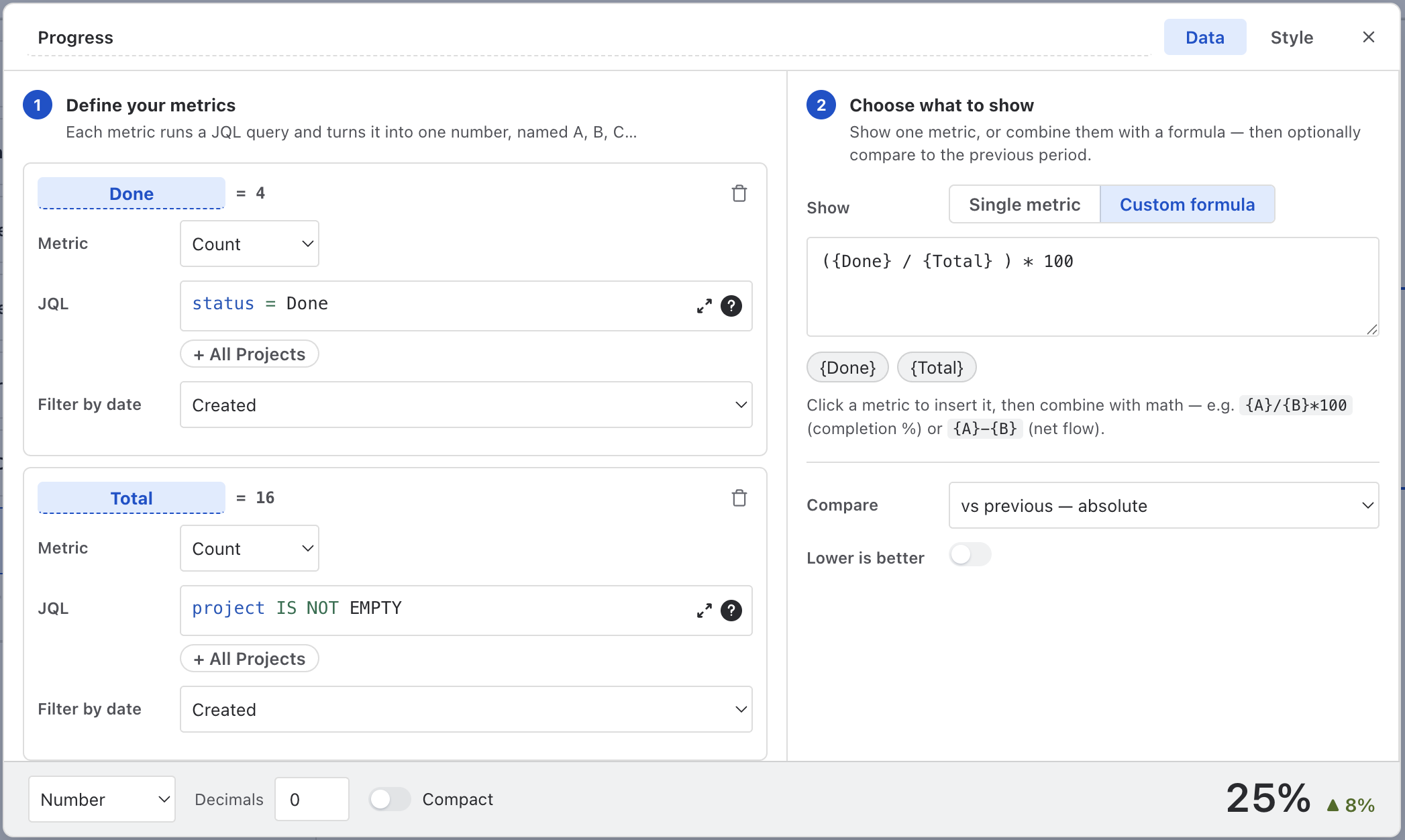
them — {Done} / {Total} * 100 — formatted as a number or a duration, optionally
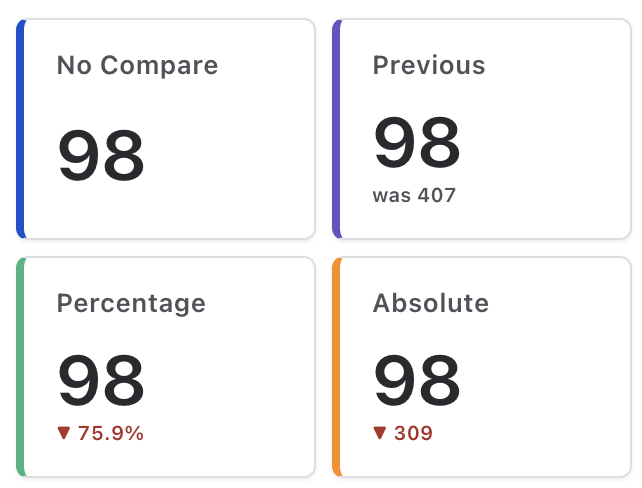
compared to the previous period (▲ 12 %, ▲ 9, or "was 33"), coloured by
threshold rules, and laid out on a drag-and-drop grid or as a list.
Data & permissions. Metrics are read with the Jira REST API in the context of the person viewing the dashboard — everyone sees only what their permissions allow. Nothing is written to Jira and nothing leaves your site.
Getting Started
- 1 On a Jira dashboard, Add gadget → KPI Formula, Trend & Big Number Dashboard, then ··· → Configure.
- 2 Click + Add card. The card modal opens on the Data tab.
- 3 Under Define your metrics, give metric A a JQL and an aggregation; add B if you need a ratio.
- 4 Under Choose what to show, pick a single metric or write a formula; optionally turn on Compare.
- 5 Set the format on the result bar, style the card on the Style tab, close the modal, arrange the grid, Save.
Cards
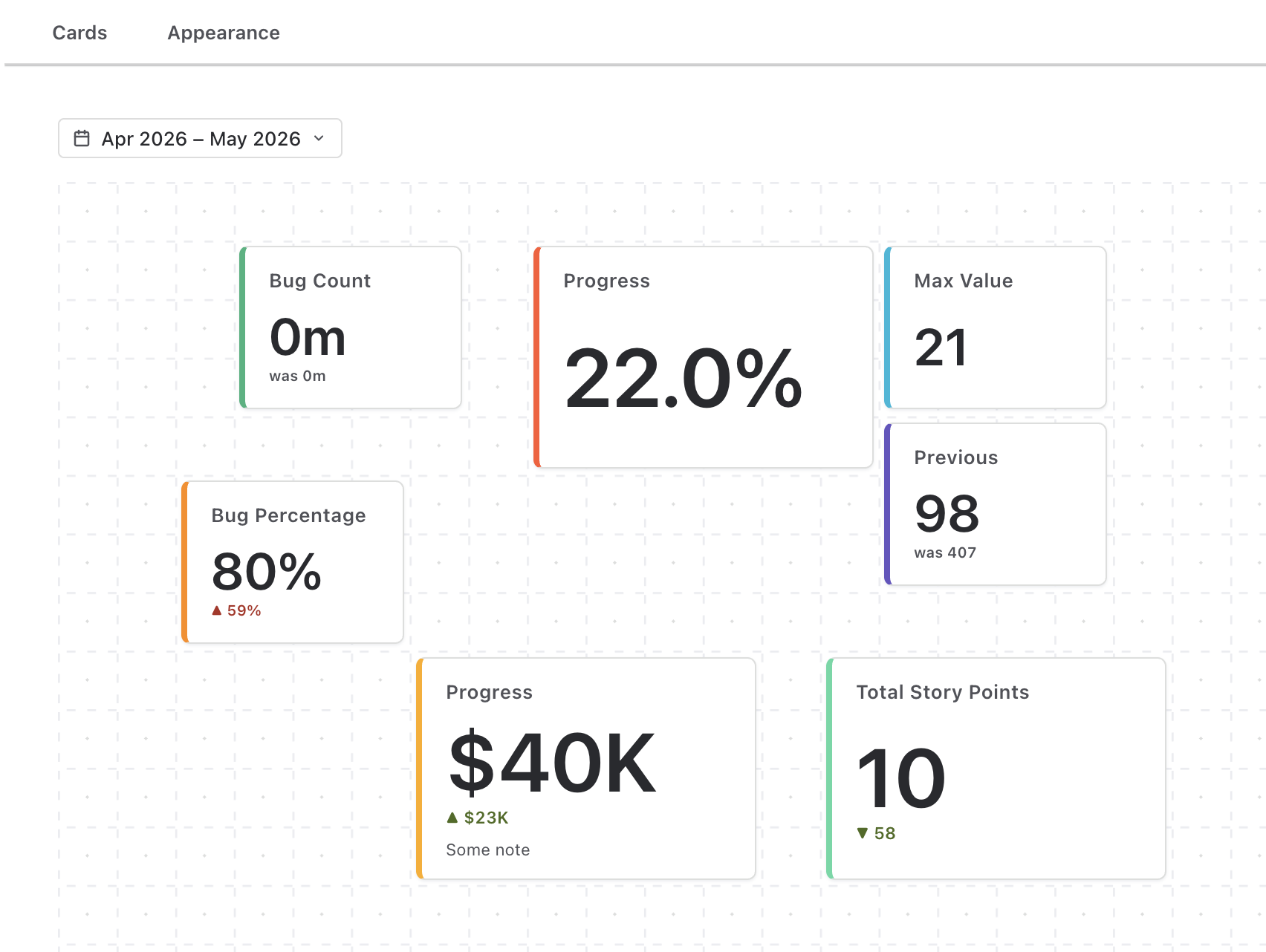
The Cards panel lists every card with its accent swatch and title, plus Edit, Hide from dashboard / Show on dashboard and Delete. Cards are self-contained: each carries its own metrics, so a card can be understood — and copied — on its own. Identical queries across cards are fetched once.
Metrics
Each metric row has a label, an aggregation, a JQL, and a date-filter choice.
| Setting | Meaning |
|---|---|
| Label | Auto-assigned A, B, C… Rename it (letters, digits, underscore; up to 16 characters) — Done, Total — and formulas rewrite themselves. The live value shows next to it. |
| Metric | Count, or Sum / Average / Min / Max of a numeric field (Story Points, estimates, time spent, custom numbers) or of a derived value. Average divides by the issues that actually carry a value. |
| JQL | Any query, in Atlassian's JQL editor with autocomplete. No project
picker on purpose — project in (A, B) is yours to write. The + All
Projects pill appends project IS NOT EMPTY. |
| Filter by date | See below. |
Derived values
The field list ends with four values Jira doesn't store but two dates imply:
| Derived value | Per issue | Typical use |
|---|---|---|
| Date difference (To − From) | Seconds between two date fields (default Created → Resolved). | Cycle time, lead time: Average of Date difference, format Duration. |
| Days since a date | Days from a date to now. | Backlog age: Max of Days since Created. |
| Days until a date | Days from now to a date; negative when past. | Runway: Min of Days until Due Date = nearest deadline. |
| Ratio (A ÷ B) | One numeric field over another. | Average of Time Spent ÷ Original Estimate. |
Filter by date
Don't filter (count all) leaves the JQL as written. Choosing a date field under Within the dashboard date range, by… makes the metric follow the gadget's period picker: the window is added to the JQL on that field, and the previous period becomes available for comparison. Use it for anything that should move with time — created, resolved, due — and leave it off for point-in-time counts like "open bugs right now".
What to Show
| Setting | Meaning |
|---|---|
| Show | Single metric — pick which one. Custom formula — combine them. |
| Compare | No comparison · vs previous — % change · vs previous — absolute · vs previous — show previous. |
| Lower is better | Flips the badge colours so a decrease is green — right for bug counts and cycle time, wrong for velocity. |
Formulas
Reference metrics by label in braces and combine them with + - * / ( ). Click a metric
chip to insert it; typing { opens autocomplete with live values.
{Done} / {Total} * 100— completion percentage.{Created} - {Resolved}— net flow for the period.{Points} / {People}— load per person.
Division by zero or a missing operand renders as -, never as a wrong number. Formula
changes recompute instantly without re-querying Jira.
Compare to previous period
The badge compares the card's value with the same formula evaluated over the previous period — the window immediately before the selected one, of the same length in the picker's granularity (This month → last month; Last 4 weeks → the four weeks before). % change reads ▲ 12 %; absolute reads ▲ 9 in the card's format; show previous reads "was 33". Every metric the formula uses must have Filter by date set — the editor warns if one doesn't, because an unfiltered metric is the same in both periods and the comparison would stay flat.
The Period Picker
Once any metric has Filter by date set, a period picker appears above the cards — in the editor and on the dashboard. Pick a granularity (Day, Week, Month, Quarter, Year) and a preset, or a custom range:
| Granularity | Presets |
|---|---|
| Day | Yesterday · Today · Last 7 days · Last 14 days · Last 30 days |
| Week | Last week · This week · Last 4 weeks · Last 8 weeks |
| Month | Last month · This month · Last 3 months · Last 6 months · Last 12 months |
| Quarter | Last quarter · This quarter · Last 2 quarters · Last 4 quarters |
| Year | Last year · This year |
Presets that include today carry a ~ badge — "current period, may be incomplete".
The period is one setting for the whole gadget; viewers can change it on the dashboard for
their session, and the gadget reopens on the period you saved.
Style
Format
| Setting | Meaning |
|---|---|
| Format | Number or Duration. |
| Decimals | Number only, 0–6. |
| Compact | Number only: 1.2K · 3.4M · 1.1B. |
| Duration units | Days, hours, min (4d 2h 30m) · Days, hours · Days · Hours, min. Input is seconds — Jira's time-tracking fields and the Date difference derived value both arrive that way. |
| Prefix / Suffix | Free text around the value: $, %, pts. |
Colouring
Rules of the form Value ≥ / > / ≤ / < / = / ≠ threshold → colour, added with + Add Rule. When several rules match, the one whose threshold is closest to the value wins, so ≥ 0 green, ≥ 50 yellow, ≥ 80 red behaves as bands. The rule colours the big number.
Shape, accent, description
| Setting | Meaning |
|---|---|
| Shape | Standard · Large · Wide · Wide, large. Standard and Large stack title over value; the wide shapes are ledgers — title left, value right. |
| Accent | The left stripe colour, also editable from the Cards list. |
| Description | Up to 80 characters under the value; available on Large cards, and shown for every card in List layout. |
| Title | In the modal header, or inline in the Cards list. |
The number auto-shrinks to fit its card, so long values never truncate. The Style tab has a live preview at the card's true proportions.
Gadget Layout
| Setting | Meaning |
|---|---|
| Layout | Grid — drag cards anywhere on a fixed-cell canvas; cards keep their physical size, and wider dashboards fit more per row. List — one row per card, drag to reorder. |
| Density | List only: Comfortable or Compact. |
| Row dividers | List only. |
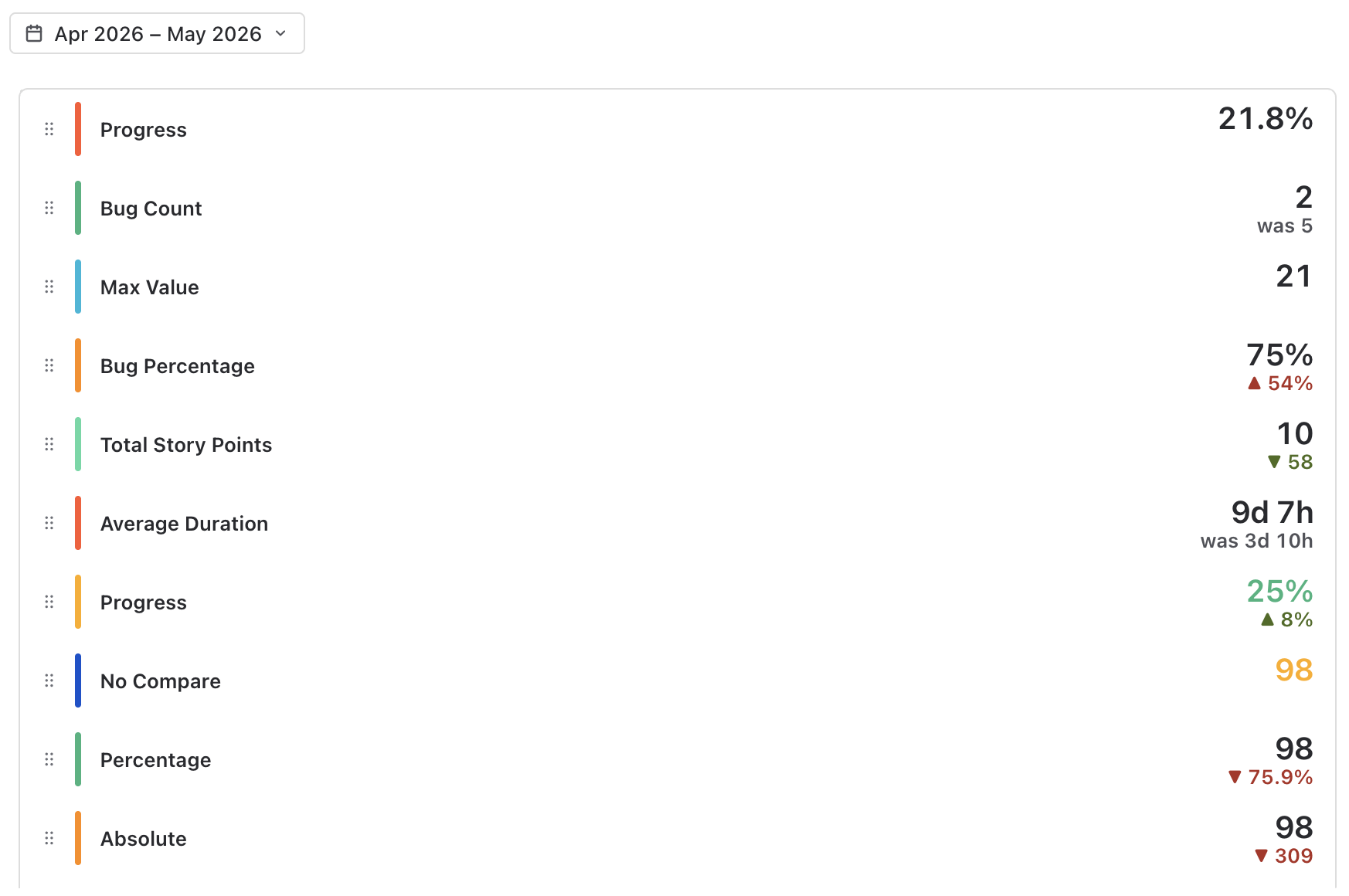
Drill-down
Click a card's number (or its View issues in Jira icon) and a popup lists every metric behind the value with a Current button — and, when comparing, a Previous button — each opening the exact JQL, period included, in Jira's issue navigator in a new tab.
Troubleshooting
A card shows "-"
The formula couldn't produce a finite number: division by zero, or a reference to a metric that no longer exists. Check the metric labels the formula uses.
A metric shows 0 although the JQL matches issues
Three usual causes: the aggregation is Sum/Average/Min/Max but no field is selected; the JQL is one Jira rejects (paste it into the issue navigator); or Filter by date is on and the current period contains none of the matching issues.
The comparison badge stays at 0 % or —
A metric the card uses has no date filter, so its value is identical in both periods; or the previous period's value is zero, so a percentage change is undefined. Set Filter by date on every metric, or switch to the absolute or "show previous" badge.
The period picker isn't showing
It appears once at least one metric on any card has Filter by date set.
Durations look wrong
Duration format expects seconds. Time-tracking fields and Date difference are seconds; Days since / Days until are days — show those as Numbers with a "d" suffix.
Data isn't refreshing
The gadget queries Jira when it loads and when the period changes. Reload the dashboard for fresh numbers.
Support
Questions, feedback or a feature request? We answer fast.
Email: [email protected]